
Embed Player Studio
Design a custom live radio player with RadioDune Embed Player Studio, generate the official embed code, and add it to WordPress, Wix, Squarespace, Webflow, Shopify, Blogger, or any HTML website.
How to Create and Embed a RadioDune Player on Your Website
RadioDune’s Embed Player Studio lets you create a customized live radio player and place it on your own website, blog, station homepage, community page, or other site that supports HTML embeds.
You can choose a player layout, select a template, customize its colors and appearance, control what information is displayed, adjust its size and visualizer, preview everything live, and then copy a ready-to-use embed code.
The embedded player remains powered by RadioDune, including its station connection, supported live metadata, player experience, and RadioDune attribution.
This guide explains the complete process—from designing the player to installing it on common website platforms.
Before you begin
You will need:
A live radio station available on RadioDune
Access to edit the website or page where you want to place the player
A website platform that supports an iframe, HTML block, embed block, or custom-code element
You do not need to build your own audio player or manually connect to the station’s stream. RadioDune generates the player and embed code for you.
Open Embed Player Studio
There are several ways to open the Studio while using RadioDune.
From a station page
Open the RadioDune page for the station you want to embed.
Depending on your screen size and station-page layout, you can either use the dedicated Embed Player Studio button or open the three-dot menu and select:
Embed Player

RadioDune will open Embed Player Studio with that station already selected.
From the RadioDune player
If you are already listening to the station:
Open the player’s three-dot menu.
Select Embed Player.
RadioDune will open the Studio for the currently playing station.
The Embed Player option is available from the supported desktop/unified player and the mobile full-screen radio player.

Change the station inside the Studio
The Studio includes a station search bar at the top.
You can search for another RadioDune station and switch to it without leaving the Studio. Your preview will update for the newly selected station.
Step 1: Choose a player family
A player family controls the overall shape and purpose of the player.
RadioDune currently provides five main families.

Standard Rectangle
A versatile horizontal player that works well in:
Website content
Blog articles
Sidebars
Station information pages
Homepage sections
This is usually the safest choice when you are unsure which format to use.
Header Banner
A wide, low-profile player designed for:
Website headers
Footers
Hero strips
Navigation-adjacent areas
Wide horizontal sections
Banner players are especially useful when you want the station to remain visible without taking up much vertical space.
Square Showcase
An artwork-focused square player designed for:
Station landing pages
Sidebars
Artist or music pages
Visual layouts
Grid-based websites
Square players provide more room for station or current-track artwork.
Round Mini
A compact circular player designed for smaller spaces.
It works well as:
A small station widget
A floating-style player
A sidebar element
A compact promotional player
Round Mini intentionally keeps the interface simpler than the larger player families.
Flex / Fullscreen
The largest RadioDune player family.
Flex players are intended for:
Station homepages
Large hero areas
Landing pages
Immersive station experiences
Half-screen or full-width sections
Use Flex when the player itself should be one of the main visual elements of the page.
Tall
The tall RadioDune player family.
Tall players are intended for:
Station homepages side panels
Large tall hero areas
Mobile pages
Half-screen sections
Use Tall when the player itself should be on its own side panel, a pop-up or if you want the player to cover the whole mobile screen.
Step 2: Choose a template
Each family contains several professionally designed starting templates.
Templates can provide very different visual styles while using the same player family.
For example, you may find designs inspired by:
Modern glass interfaces
Minimal light interfaces
Broadcast consoles
Neon radio aesthetics
Artwork-focused players
Classic radio styling
Large cinematic station layouts
Select the template closest to the design you want.
You can customize it afterward, so you do not need to find a perfect match before continuing.

Step 3: Customize the player
The Studio organizes customization into several sections.
Appearance
Use Appearance to control the overall visual identity of the player.
Depending on the player family, you can choose surfaces such as:
Glass
Solid
Gradient
Artwork-based backgrounds
You can also customize:
Background color
Gradient colors and direction
Accent color
Volume-bar color
Primary text color
Secondary text color
Border color
Border width
Glow intensity
Shadow style
Use the accent presets if you want a quick color change without building a palette manually.
Tip for station owners
Try using your station’s primary brand color as the player accent while keeping the background slightly darker or lighter than the surrounding website.
This usually helps the player feel integrated with your website without disappearing into it.

Size & Shape
The Size & Shape controls let you adjust the physical proportions of the player.
Available settings depend on the family and template and can include:
Player width
Player height
Player diameter
Artwork or logo size
Play-control size
Internal spacing
Volume-bar width
Typography scale
Corner radius
RadioDune applies safe size limits to player templates so important controls, station information, and branding are not accidentally compressed into unusable layouts.
Square players remain square automatically, while Round Mini players remain circular.
For most websites, it is better to choose the appropriate player family than to force a large player into an extremely small container.

Spectrum
The Spectrum section controls the animated audio visualization.
Depending on the player, available styles can include:
Bars
Classic animated frequency-style columns.
Lightning
A continuous energetic line or waveform treatment.
Orbital
A circular visualization that works especially well with artwork-focused or round designs.
You can also adjust characteristics such as:
Spectrum size
Spectrum length
Frequency detail
Vertical position
The visualizer uses the player’s accent color so it remains coordinated with your overall design.
Content
The Content section controls which station information appears inside compatible players.
Options can include:
Station or current-track artwork
Prefer current artwork when available
LIVE indicator
Callsign
Station name
Now-playing information
Audio visualization
Volume controls
This makes it possible to create anything from a relatively minimal player to a much more information-rich station experience.
About Round Mini
Round Mini deliberately uses a simplified interface centered around station identity, playback, live status, and RadioDune branding.
If you need detailed metadata, volume controls, or extensive now-playing information, choose Rectangle, Banner, Square, or Flex instead.
Frames
Frames add decorative treatments around compatible players without covering the main controls or station information.
Available treatments can include styles such as:
None
Glass Edge
Neon Broadcast
Botanical
Elegant Gold
Some frames are only available for compatible player families.
You can also adjust the frame intensity.
Step 4: Preview your player
The center of Embed Player Studio contains a live preview.
As you change templates, colors, dimensions, visualizers, frames, or content options, the preview updates so you can see the result before placing anything on your website.
Check the design at different sizes before generating the code.
Pay particular attention to:
Station-name readability
Artwork size
Play-button visibility
Contrast between text and background
Player width
Player height
How the design will fit the intended area of your website
For a website with heavy mobile traffic, also consider how much room the player will have on a phone.
Step 5: Generate the embed code
When your design is ready:
Click Get Embed Code at the top of Embed Player Studio.
A dialog will display the official RadioDune iframe.
Click Copy code.
Return to your website editor.
Paste the code into an HTML, embed, iframe, or custom-code element.

The generated code will look conceptually similar to this:
<!-- Powered by RadioDune Embed Player -->
<iframe
  src="https://radiodune.com/embed/station/..."
  width="..."
  height="..."
  style="..."
  allow="autoplay; clipboard-write; encrypted-media"
  loading="lazy"
  title="RadioDune Player - Station Name"
></iframe>
Your actual code will contain the selected station and the configuration created in Embed Player Studio.
Always use the complete code generated by the Studio rather than copying the example above.
How the RadioDune embed works
The embed code creates an iframe containing the RadioDune player.
The generated URL contains:
The RadioDune station
Your selected player template
Your player configuration
The player itself continues to be served by RadioDune.
This means supported stream information, station identity, metadata, player behavior, and RadioDune attribution remain part of the embedded player rather than being copied permanently into your website.
The generated iframe is also configured with a responsive width. It can shrink with the surrounding website while respecting the maximum width you selected in the Studio.
Important: keep the generated code intact
For most users, there is no reason to manually edit:
The iframe
srcThe
presetinformationThe encoded configuration
The iframe permissions
RadioDune branding or attribution
Changing these values can cause the player to stop working or behave differently from the Studio preview.
You can place the iframe inside your own website layout, but the RadioDune player itself should remain intact.
Can RadioDune branding be removed?
No.
RadioDune attribution is a permanent part of the official embedded-player experience.
The Studio is designed so the RadioDune identity remains within the player while still giving you extensive control over the visual appearance surrounding it.
This allows stations and listeners to customize the player without disconnecting it from the RadioDune platform.
Add the player to a plain HTML website
If you manage your website directly with HTML, installation is straightforward.
Open the HTML file or template for the page.
Find the location where the player should appear.
Paste the complete RadioDune iframe code.
Save the page.
Upload or deploy the updated file.
Open the published page and test the player.
For example:
<section class="station-player">
  <!-- Paste the complete RadioDune iframe here -->
</section>
You can use your existing CSS to control the surrounding section, alignment, margins, and page layout.
You generally do not need to modify the RadioDune iframe itself.
Add the player to WordPress
WordPress block editor
Edit the page or post where you want the player.
Click the + block inserter.
Search for Custom HTML.
Add the Custom HTML block.
Paste the complete RadioDune iframe.
Preview the block.
Click Update or Publish.
Test the player on the published page.
WordPress.com currently requires hosting features on a paid plan for iframe tags in Custom HTML blocks. If WordPress removes the iframe after you save it, check your plan and custom-code permissions. Self-hosted WordPress installations can also have security or user-role settings that restrict iframe HTML.
-1.jpg)
Add the player to Wix
For a visible RadioDune player, use Wix's page-level embed element rather than placing the iframe as invisible tracking/custom code.
Wix Editor
Open your site in the Wix Editor.
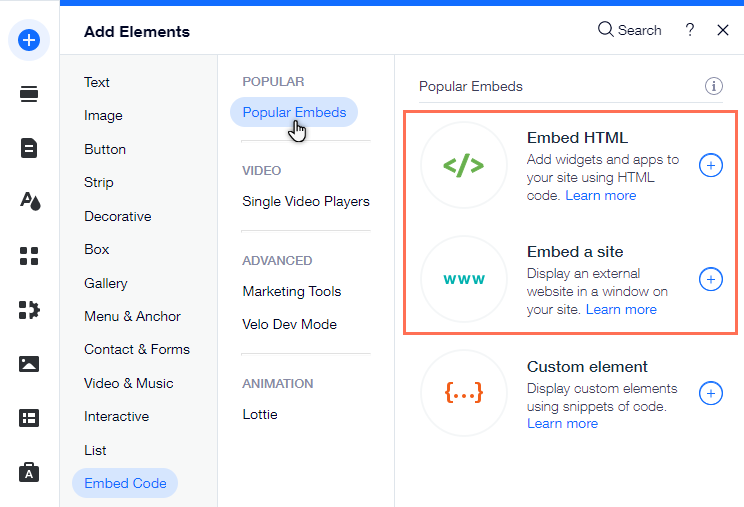
Select Add Elements.
Open Embed Code.
Choose Embed HTML.
Add the embed element to the page.
Click Enter Code.
Paste the RadioDune iframe.
Click Apply.
Resize the Wix embed container so it comfortably fits the player.
Publish the site and test it.
Wix's current editors support visible HTML/iFrame elements specifically for third-party widgets and embedded content. Wix Studio follows a similar flow through Add Elements → Embed & Social → Embed Code.
Add the player to Squarespace
Edit the page or post.
Choose the location where the player should appear.
Click Add Block.
Select Code.
Open the Code Block settings.
Select HTML where applicable.
Paste the RadioDune iframe.
Make sure the block is rendering the code rather than displaying it as source text.
Save the page.
Test the published site.
Squarespace currently allows HTML in Code Blocks on all plans, but iframe support in Code Blocks is limited to plans that include advanced custom-code functionality. If the iframe is removed or does not render, check the features included with your Squarespace plan.
Add the player to Webflow
Open the page in the Webflow Designer.
Open the Add panel.
Add a Code Embed element where the player should appear.
Paste the complete RadioDune iframe.
Save and close the code editor.
Adjust the surrounding Webflow container if necessary.
Publish the site.
Test playback on the published page.
Webflow's current Code Embed element accepts HTML and iframe content. Availability depends on the site's plan or qualifying Workspace features.
Add the player to Shopify
If your Shopify theme provides a Custom Liquid section:
Go to Online Store → Themes.
Open the theme customizer.
Navigate to the page or template where the player should appear.
Add a Custom Liquid section or block.
Paste the RadioDune iframe.
Save the theme.
Test the storefront.
If your theme does not provide a Custom Liquid section, an experienced theme developer can place the iframe in the appropriate theme section or template.
Shopify currently supports themes that expose Custom Liquid sections for custom snippets, while more advanced changes can be made through the theme-code editor.
Add the player to Blogger
For a player that should appear in a sidebar or another reusable layout area:
Sign in to Blogger.
Open Layout.
Select Add a Gadget where you want the player.
Choose HTML/JavaScript.
Paste the RadioDune iframe.
Save the gadget.
Save the layout.
View your blog and test the player.
You can also add HTML directly to Blogger's theme when you need more precise placement. Blogger's official documentation continues to provide HTML editing and HTML/JavaScript gadget functionality for custom page elements.
Add the player to another website builder or CMS
RadioDune does not require a special plugin.
On most platforms, look for an element named something similar to:
Custom HTML
HTML
Embed
Embed Code
Code Block
Custom Code
iframe
HTML Widget
Add that element to your page and paste the complete code generated by Embed Player Studio.
If the platform accepts HTML but removes the <iframe> tag after saving, the restriction is usually being imposed by the website builder, hosting plan, administrator permissions, or a security policy.
Check the platform's documentation for third-party iframe support.
Which player should I use?
For a station homepage
Try Flex / Fullscreen or Standard Rectangle.
Flex works best when listening is a major part of the homepage experience.
For a website header
Try Header Banner.
It provides playback while using relatively little vertical space.
For a sidebar
Try Standard Rectangle, Square Showcase, or Round Mini, depending on the available width.
For a blog article
Try Standard Rectangle.
It provides enough information to identify the station without overwhelming the content.
For a visually focused landing page
Try Square Showcase or Flex / Fullscreen.
For a small persistent promotional area
Try Round Mini. You can adjust the player's dimension as needed.
Responsive and mobile design tips
The RadioDune embed generator already gives the iframe a responsive width up to the maximum size configured in the Studio.
For the best results:
Give the player enough room inside its website container.
Avoid forcing a player below the safe size intended for its family.
Use Rectangle or Round Mini when working with very narrow areas.
Use Banner primarily in horizontal spaces.
Use Flex primarily in large content areas.
Preview the finished page on both desktop and mobile.
If a player feels crowded, return to Embed Player Studio and choose a better family instead of heavily modifying the generated iframe.
If you change the player dimensions in the Studio, generate a fresh embed code afterward.
How to change a player that is already embedded
Your current design settings are included in the generated embed URL.
If you later want a different design:
Open Embed Player Studio again.
Select the station.
Recreate or update the design.
Click Get Embed Code.
Copy the new code.
Replace the previous RadioDune iframe on your website.
Publish the changes.
Editing the Studio later does not automatically rewrite code that you previously pasted into another website.
Troubleshooting
The player does not appear
Check the following:
Make sure you pasted the entire iframe.
Confirm your website platform allows third-party iframes.
Make sure the website editor did not remove the
<iframe>when saving.Publish the page—some website builders behave differently between editing and published views.
Check whether your website's security settings restrict external frames.
Test the same RadioDune station directly on RadioDune.
If you manage a site with a strict Content Security Policy, your developer may also need to permit https://radiodune.com as an allowed frame source.
The player appears too narrow or too large
Return to Embed Player Studio and use Size & Shape to create dimensions better suited to the location.
Then generate new embed code.
Avoid manually forcing a large Flex player into a tiny sidebar or shrinking a template far below its intended layout.
Part of the player is cropped
Check the website builder's container or embed-element height.
Some visual website builders create their own outer box around an iframe. Even when the RadioDune iframe has the correct height, that outer box can be smaller and clip the content.
Increase the container height or resize the embed element.
Audio does not start automatically
This does not necessarily mean the player is broken.
The RadioDune iframe grants the embedded player permission to use autoplay functionality, but browsers can still require the visitor to interact with the page before audio with sound is allowed to begin. In those situations, the listener simply presses the player’s Play button.
Now-playing information is missing
Not every radio stream provides the same amount of metadata.
When current song or artwork information is available through RadioDune, compatible players can display it.
When that information is unavailable, the embedded player can fall back to the station's identity instead.
Also verify that Now playing metadata and the relevant artwork options are enabled under Content in Embed Player Studio.
The station artwork is not changing with the song
Open the Studio and check:
Content → Prefer current artwork
When enabled, supported players can use current-track artwork when RadioDune has it available and fall back to station artwork when it does not.
My website removed the embed code
This usually means the website platform is filtering iframe HTML.
Common causes include:
Plan restrictions
Security settings
User-role restrictions
A website builder that only permits approved embed providers
Check the platform-specific instructions earlier in this article.
Frequently asked questions
Can listeners embed stations, or is this only for station owners?
Both can use Embed Player Studio.
Station owners can use it to integrate their station into their official website, while listeners can use it to feature a RadioDune station on a blog, personal site, community page, or other compatible website.
Does the embedded player copy the station onto my server?
No.
The iframe loads the RadioDune-powered player from RadioDune rather than installing a separate audio application on your website.
Will the player continue using RadioDune after I embed it?
Yes.
The embedded experience remains connected to RadioDune for the player, supported station information and metadata, and RadioDune attribution.
Can I remove the RadioDune name or branding?
No.
RadioDune branding is part of the official embedded player and is intentionally protected.
Can I change the colors?
Yes.
Use the Appearance section to customize supported background styles, accent colors, text, borders, volume-bar colors, glow, shadows, and gradients.
Can I hide some station information?
On supported player families, yes.
The Content section lets you enable or disable items such as artwork, callsign, station name, LIVE status, now-playing metadata, visualizer, and volume controls.
Round Mini intentionally provides fewer content controls.
Can I resize the player?
Yes.
Use the Size & Shape section in Embed Player Studio.
The Studio automatically limits certain dimensions so the selected design remains functional.
Do I need a RadioDune plugin for WordPress or another CMS?
No.
The standard RadioDune embed is an iframe, so platforms that support custom HTML or iframe embeds can normally display it without a RadioDune-specific plugin.
Start embedding
Embed Player Studio gives station owners and radio fans a much more flexible way to bring live radio into their own websites.
Choose your station, select a player family, customize the design, preview it, and click Get Embed Code.
Then paste the generated RadioDune player into your website and publish.
Design it. Customize it. Embed it.
RadioDune — Make Radio Cool Again.